
If you are reading this post then you are tasked with learning how to use R and/or RStudio to perform statistics. Either you are a student who is told that you must use RStudio for class or you are someone who has a statistical question you want an answer for (either for yourself or someone else) and want to know how to get the answer without spending a lot of time and money to get it.
R is a great language to answer statistical questions. The base language has been around for quite some time (around 1997, see https://cran.r-project.org/doc/FAQ/R-FAQ.html) and is designed to allow anyone to write instructions to perform specific actions (called packages) which are generally freely downloadable and can be used by anyone. If you are curious about the history of R as a programming language the Wikipedia page is also a good place to start (https://en.wikipedia.org/wiki/R_(programming_language) ). The history is not important for the purposes of this blog post.
Operating System Identification
One of the most important things you need to do before starting to work with R is identify your operating system as it will change what you will download and install on your computer. If you are a computer novice there are three major operating systems: Windows, Mac, and Linux.
If you don’t know if you have a Linux operating system, unless you are borrowing someone else’s computer, then the chances of you having a Linux computer are small. Ok, unless you have a Chrome Book. If so, unfortunately you will need to find a different computer to use, as R and RStudio will not run on a Chrome Book.
If you don’t know if you have a Windows or Mac computer, you will know it is Windows if you see a Windows icon on the task bar (https://en.wikipedia.org/wiki/Taskbar). If you have an apple on the end of the menu bar (https://en.wikipedia.org/wiki/Menu_bar) or have a keyboard button that says “Command” then you have a Mac OS X operating system.
Mac OS X Version
To find out what version of the Mac operating system you have, click on the apple and select “About this Mac” you will want to find the version number, it should start with 10 and be something like 10.6.4 or 10.13.1. You will need to make sure to make the correct choice for the software to download and install. Don’t worry, I’ll walk you through that choice.
First — Install R
To use RStudio (which I highly recommend for the novice statistician or student) you will first need to download and install the R software language and base package. Then we will install RStudio which will make your user experience much friendlier. At this point there will continue to be two sets of instructions, one for Windows and one for Mac OS X.
Windows OS
Go to https://cran.r-project.org/bin/windows/base/ and click on the top link which will be something like “Download R 3.4.3 for Windows”. After clicking on the link, a pop-up window will appear, click on Save File:
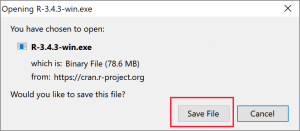
This will save the installer to your computer in the location where your downloads go. Depending on your web browser, it is often easier to access the file from the web browser instead of the Downloads folder. In Mozilla Firefox clicking on an arrow pointing down is how you access the recent downloads. On Chrome the file is available at the bottom of the window.

Click on the file to run the installer.
You may need to grant permission to have the installer run. Give permission. If you are told you do not have the required permission needed to run the installer you will need to talk to whomever has administrative control over your computer.
The first option will ask what language you will want to use during installation. It is highly recommended that you select a language that you are both comfortable with as well as the language of choice of whomever you may ask for installation assistance from.

The next screen is the software license. R is licensed under GNU General Public License. Once you have read the license agreement, click Next >.

Unless you have a strong reason to change the installation location, keep the default on the next screen and click Next > again.

Continue to click next until you get to the screen that lists “Select Additional Tasks”. Make sure you keep both registry options checked but you can change the selections for the shortcuts. I strongly recommend unchecking the desktop shortcut option because the shortcut only launches R not RStudio. So you should never need to launch R. After you click Next > R will install.

If it all worked as it should then you should see a screen like the one below. Click Finish.

Now you are ready to install RStudio.
Mac OS X
At the time of this blog post there are three different options for installers (https://cran.r-project.org/bin/macosx/) depending on your Mac OS X version. If you do not have a current operating system you will not have access to the latest versions of R but it is still usable for most purposes for the beginner statistician and student.
If your Mac OS X version is between 10.6 and 10.8.5 you will want to download the Snow Leopard installer: https://cran.r-project.org/bin/macosx/R-3.2.1-snowleopard.pkg.
If your Mac OS X version is between 10.9 and 10.10.5 you will want to download this installer: https://cran.r-project.org/bin/macosx/R-3.3.3.pkg.
If your Mac OS X version is greater than 10.11 then you can download the latest version of R which should always be the top link. At this time, the link for the current version is https://cran.r-project.org/bin/macosx/R-3.4.3.pkg but this link will soon be out of date as there are at least 3 new versions of R released a year.
I am unable to provide screenshots of the installation process on Mac OS X as I do not have access to a Mac computer, however, the installation follows the basic installation of any new package on Mac. After downloading, in the downloads folder click on the package and drag the package icon into your Apps folder.
Now we are ready to install RStudio.
Second — Install RStudio
Windows OS
RStudio is a commercial company that provides an easier to use interface for the R language. This interface is free for most users (including students). Most people will want to select the “Open Source Edition” for the “Desktop”. The link to the latest installers is: https://www.rstudio.com/products/rstudio/download/#download. You will need to remember your operating system from above to select the correct option.
The current link to the Windows installer is: https://download1.rstudio.org/RStudio-1.1.383.exe.
The current link to the Mac OS X installer is: https://download1.rstudio.org/RStudio-1.1.383.dmg. Note for Mac OS X there is only one installer as long as your operating system is 10.6 or newer.
Once you click on the link the installer will download. Click “Save File” or the equivalent option for your web browser. Again, once it is downloaded, access the installer either from your web browser recent downloads list or from the folder where your downloads are stored on your computer.
Run the installer. On Windows this is what the installer will look like:

Click Next > through all of the options and it will start to install. When it is done the installer will show the finished page.
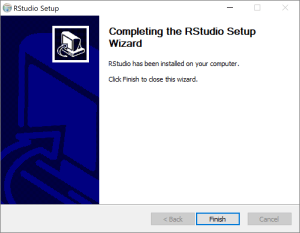
Click Finish.
*Important* Nothing will happen but RStudio will be installed.
Launching RStudio
Mac OS X
On Mac OS X the application will be in your Applications folder. I strongly recommend pinning it to your dock. You can do this by opening the application from the Applications folder. Then right-click on the icon in the dock and select “Keep in Dock”.
Now RStudio is ready to use and easily accessible for the future.
Windows OS
On Windows there may be a desktop icon (if you didn’t uncheck that option from the additional tasks step of the installer). This is not the icon to launch RStudio. Do not use this icon.
I find the easiest way to launch applications is on Windows 10 to type the application in the search bar on the tool bar “RStudio” or using the keyboard press the Windows key next to the Alt key and then type in RStudio. On Windows 7, if you click on the Windows menu on the tool bar there should be a search option available.

Type RStudio in the search box.
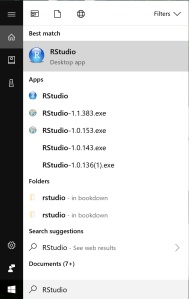
Select RStudio and it will launch.
The first time you launch RStudio this is what you will see:

Next…
Now that you have RStudio installed you will want to get started using it! The next blog post will cover an orientation to what you can see in the image above as well as how to start running basic statistics and how to get help when you need it.
If you have any suggestions about topics you would like me to cover please feel free to reach out to greatlineswriting@outlook.com.
 Great Lines Writing and Consulting Services