
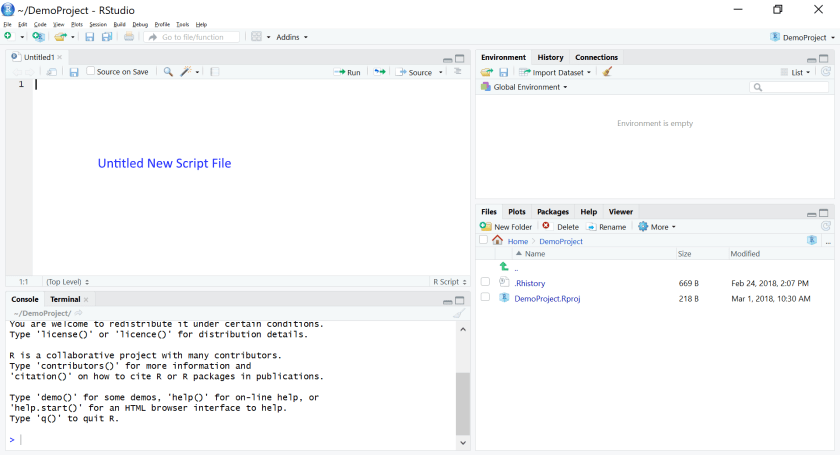
In the last post I talked about how to save and reuse code and commands in RStudio. I included the below screenshot of the workspace in RStudio, with the panes labeled.
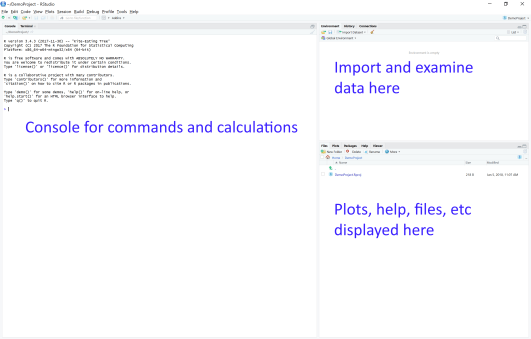
Now we will focus on the top right pane, where it says “Import and examine data here”.
Importing a Comma Separated Text File
But first we need data to import. I will cover creating a data file in another post, so let’s assume we have a data file created in Excel and saved as a CSV file (comma-separated values) file. This data file contains 7 columns containing the number of plain M&Ms from two fun sized packs as well as the number in each color. Partial M&Ms were rounded up to the next whole number.

To import this data, in the Environment tab, click on Import Dataset (or go to File > Import Dataset). You will notice there are several options. For a CSV file there are two options that will work. Either From Text (base)… or From Text (readr)… I will not go into the technical details of the differences between the two options, but essentially after importing they store the data in different formats.
Import CSV using From Text (base)…
The traditional way of importing data from text files into R is using this base package import tool. After selecting this option, a file browser will open to allow you to select the file to import. Below is how the dialog looks after selecting the M&M data file.
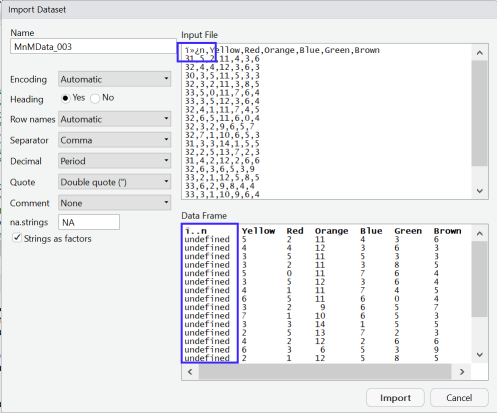
Notice the weird characters and the column of undefined values. Unfortunately, this is a problem with creating files in Excel and importing using the From Text (base)… option. One of the great things about RStudio is that you get a preview of what your data will look like before you import it. This should prevent the problem of importing the data and then later realizing that something went wrong on the import step. It is also fortunate that we have a great tool available to fix this issue! We will open the text file in RStudio, edit it and then try to import again. So select Cancel.
From the File menu, select File > Open File… and select that same file to open. Note, this step does not import data!
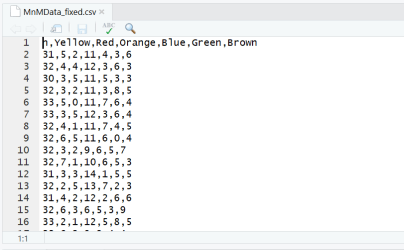
If you see any weird characters you didn’t intend, delete them. Even if the data looks perfectly fine (as in this case), we want to save this file as a new copy. So go to File > Save As… and give the file a new name.
Then go back to the Import Dataset… option and select From Text (base)… again. Even though the only thing we did was open in R and saved a new copy of the file, now the preview of the data looks much better. Make sure, if you have headers (n, Yellow, etc.) that the Heading option on the left says Yes.
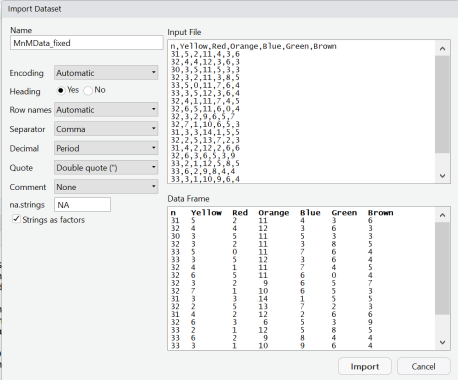
After clicking Import, the data will be imported and loaded into the environment and opened in a view tab. The code used to import the data will be printed in the console. You can copy this code and save it at the beginning of a script so that you don’t have to manually go through the import process if you close the RStudio session before you are done.
The biggest issue with using From Text (base)… is that it has a problem handling files opened in Excel, but it is better at importing datasets that have factor variables.
Here is another dataset example, this time the file is a tab delimited text file:

When importing this into RStudio using From Text (base)…, you can preview the variables by clicking on the blue arrow button in the Environment pane.
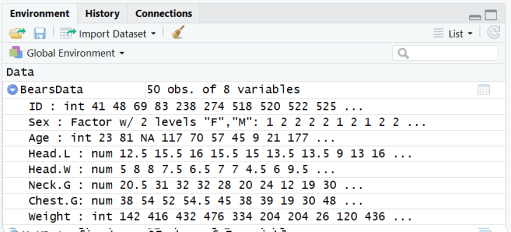
You can see that Sex is listed as a Factor variable, meaning it is a categorical variable with two levels (“M” and “F”).
Import CSV using From Text (readr)…
There is an alternate package that imports text files. It generally handles files opened in Excel better but does not automatically classify variables as Factors.
To use this data importer, click on the From Text (readr)… option. You will notice that instead of opening a file explorer you see the Import Text Data window below.

Click on the Browse… button to select the file.
First, we will look at the M&M Data again. I have selected the file that was opened in Excel that did not look right when using the other data import option. You can see here that it looks fine.
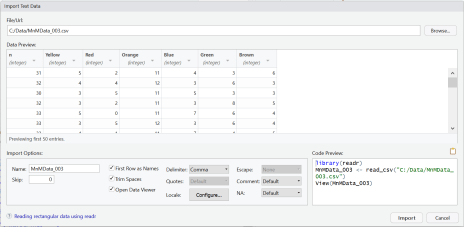
To finish the import, click Import.
Now, let’s import the bears data. Note that initially it doesn’t look good. That is because this data importer cannot automatically detect the delimiter in the file and it is set to comma by default.

Click in the drop down menu for Delimiter and change it to Tab. Now the columns/variables should be automatically detected and it should look good other than the fact that Sex is identified as a categorical variable. You can change this to a factor variable in this data view, but you have to know all of your factor level values exactly which might not always be the case. So I prefer to fix it after import.

When you are ready to import, click Import.
Above is what the data looks like in the Environment pane after importing using From Text (readr)…. Note that Sex is identified as a “chr” variable type.

To change Sex to a factor variable we just need to run one line of code. Remember the code from the import and factor conversion process can be saved in an R script for reuse later and you can run all of this at once the next time you open RStudio.
To convert to a factor use this line of code:
BearsData$Sex <- as.factor(BearsData$Sex)
See how that changes the Environment Pane for the BearsData:

So there are pros and cons to each method of importing data from text files. There are other options available for importing data into R and RStudio, but these are the two primary commands you will use.
What’s Next?
The next blog post will cover how to use Excel to take raw data from scraps of paper to create a file to import into RStudio for analysis.
If you have any questions please don’t hesitate to reach out to greatlineswriting@outlook.com!
















 Great Lines Writing and Consulting Services